

Create a site
Create a new static site on YWT hosting and start building its first page.
Create a site
Every YWT account can create a static site. You can build its page by filling in a form, with no code, or work with HTML, CSS, and JavaScript in the built-in code editor. Public publishing and custom domains depend on your active static hosting plan.
This guide walks you through creating your first site from scratch.
Before you start
You need a YWT account. If you do not have one yet, register for free.
You do not need a domain name to create a hosted site. Sites use a YWT-managed *.ywt.app hostname, and you can add a custom domain later if your plan allows it.
Your sites list
Navigate to Website hosting in your YWT account sidebar. This is where all of your sites live. If you have not created any sites yet, the list will be empty.
From this page you can create a new site if your plan limit allows it and open each site. A site has three tabs: Overview, Edit, and Domains. Its version history and visitor analytics open from links on the Overview.
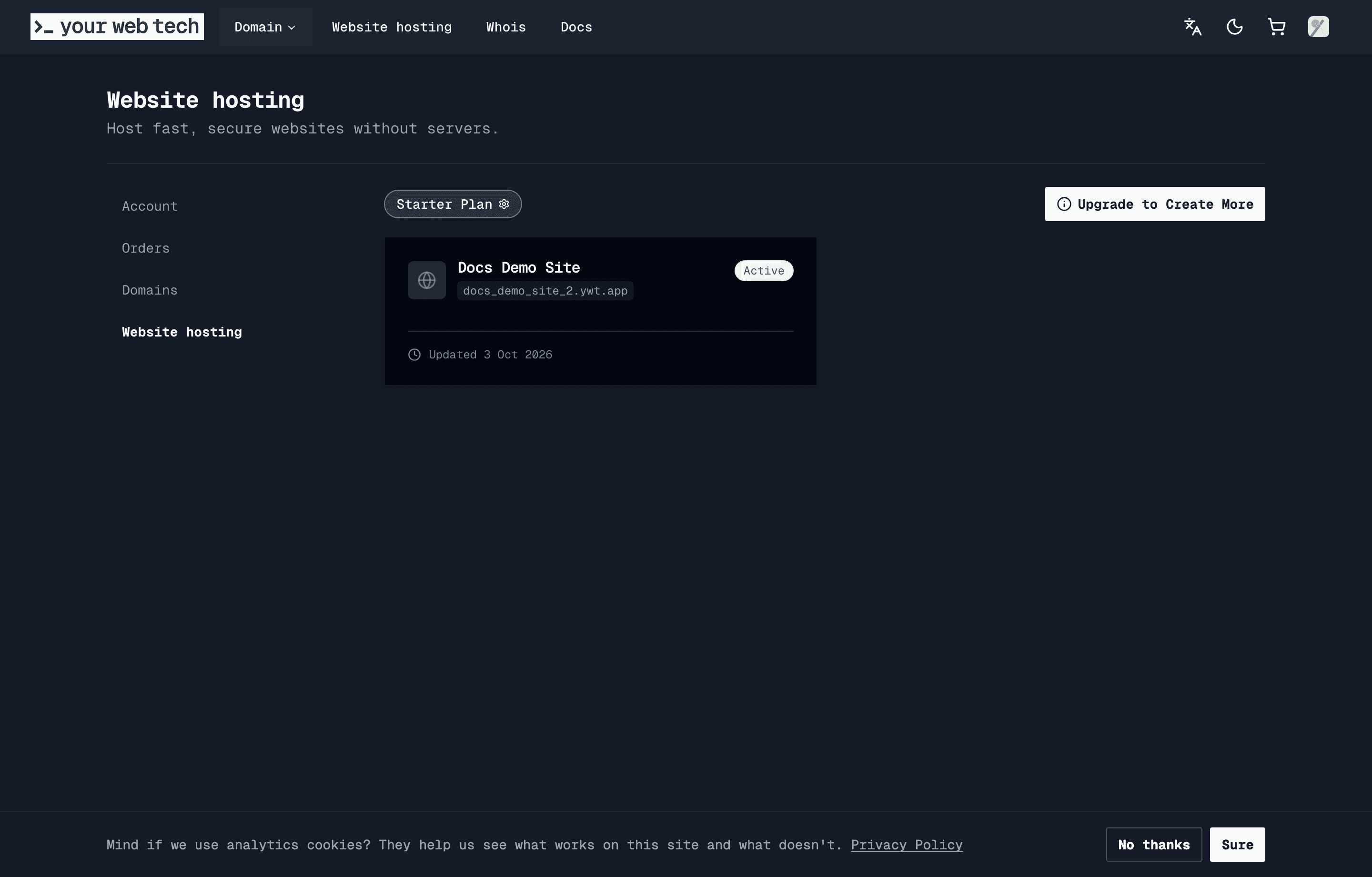
Create a new site
Open the create dialog
Click the Create New Website button in the top-right corner of the website hosting page. A dialog will appear asking you to configure your new site.
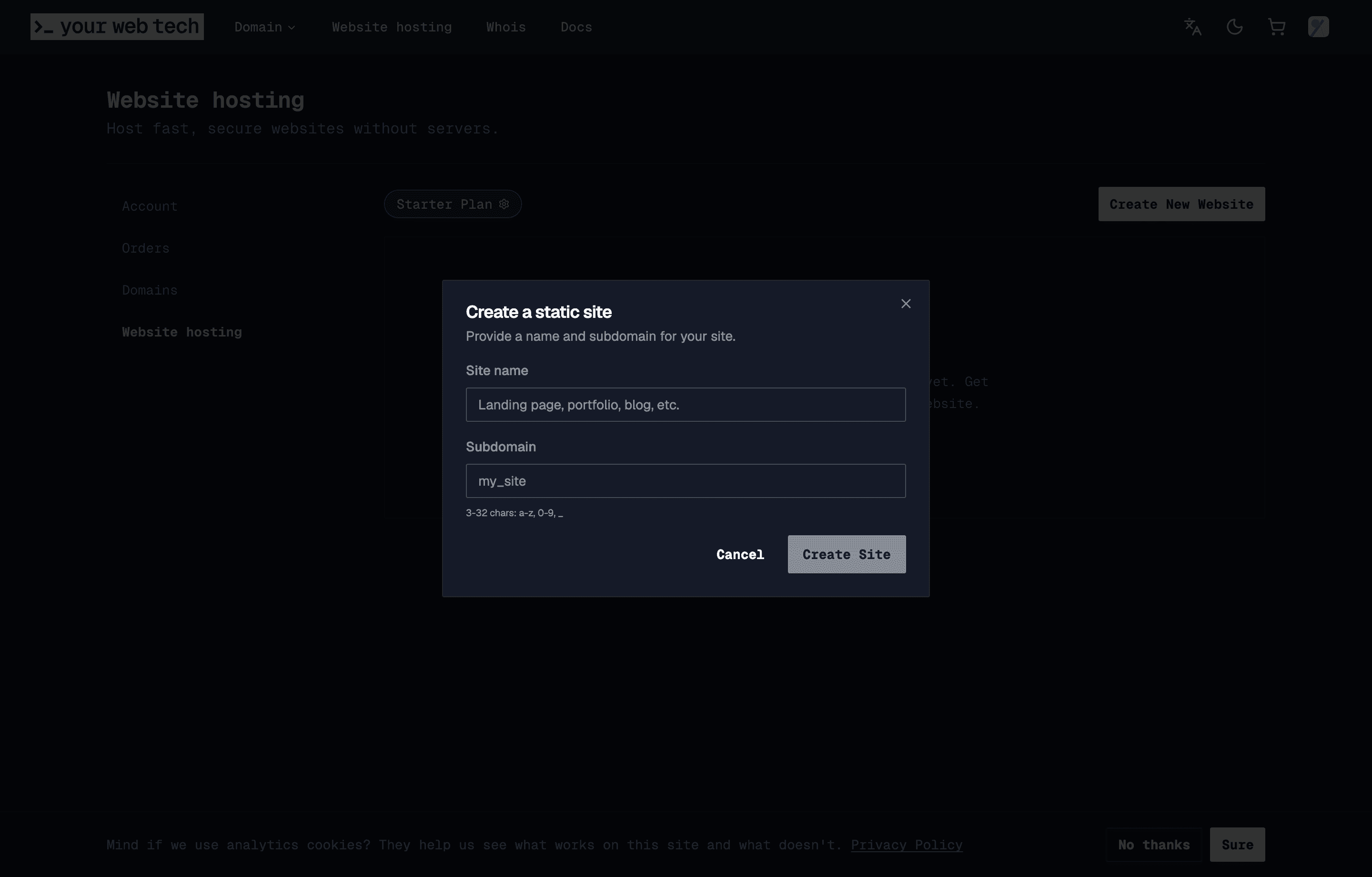
Choose a site name
Enter a display name and subdomain for your site:
- The display name is shown in your account.
- The subdomain becomes your default hostname:
subdomain.ywt.app.
Subdomains must be 3-32 characters, lowercase, and can contain letters, numbers, and underscores. They must be unique across all YWT users.
Choose your subdomain carefully. The subdomain you pick becomes your default YWT hostname. For example, if you enter my_portfolio, your site hostname is https://my_portfolio.ywt.app.
Confirm and create
Click Create Site. YWT provisions your site in a few seconds and opens the site Overview.
Open the Edit tab
Click Edit your page on the Overview, or open the site's Edit tab. While the site has no files, the Edit tab says Nothing here yet and shows the ways to start.
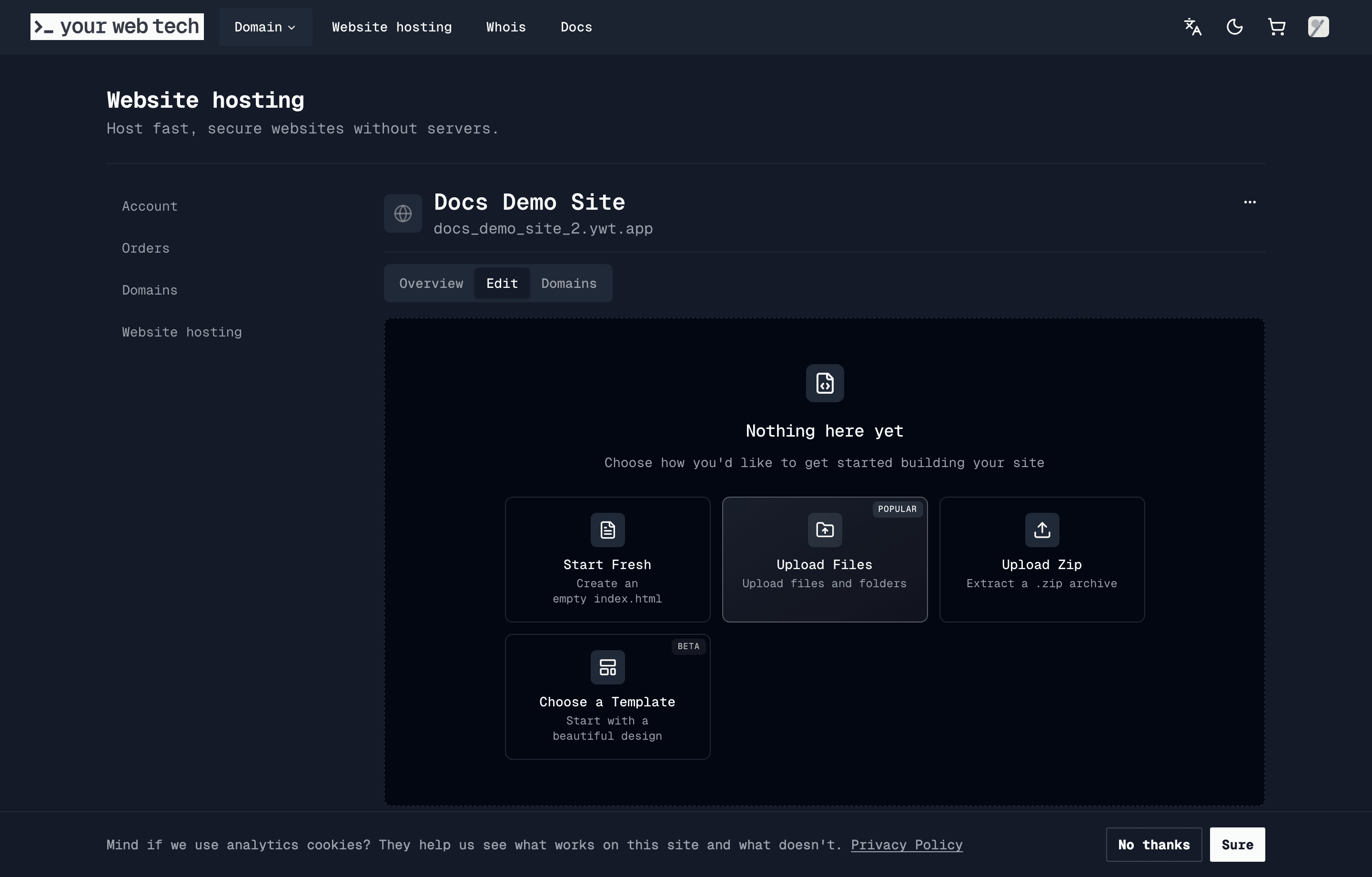
Select a starting point
Pick one of the options described below.
Choose how to start
The empty Edit tab leads with Create a page ("Fill in a form. No code."). Pick it if you want a one-page website and do not want to write code. You fill in your business name, a short text, services, opening hours, contact details, a photo, and a colour scheme, and YWT builds the page. See Create a page without code.
Next to it, Build it with ChatGPT or Claude is for you if you already have an AI assistant. You paste one line into the chat, answer its questions, and it writes your page as a single index.html file. You then come back to this screen, choose Build it with your AI assistant and drop that file in. See Build your website with your AI assistant.
The other ways to start are under Advanced. They give you files you edit as code in the code editor:
| Option | What it does |
|---|---|
| Choose a Template | Copies a ready-made design into your draft. See Templates. |
| Upload Files | Uploads files and folders from your computer. |
| Upload your website | Uploads a .zip archive, or the one index.html file your AI assistant gave you. |
| Start Fresh | Creates a simple index.html starter file. |
| Load from Version | Copies the files of a version of this site you published before. |
Choose carefully. A page made with Create a page can only be changed through its form, and cannot be switched to code later. If you want code after all, start another site and use Advanced there.
What happens behind the scenes
When you create a site, YWT:
- Reserves the default hostname
subdomain.ywt.appfor your site. - Sets up an empty draft for your files.
- Opens the site Overview, where you can continue to the Edit and Domains tabs, or open History and visitor analytics from the links on the page.
Your site is not updated publicly until you publish a deployment.
If you later no longer need the site, delete it from the site menu. Deletion removes the site, its connected hosting domains, draft files, deployments, and related hosting artifacts. See Manage or delete a site before deleting anything important.
Next steps
- Create a page without code by filling in a form.
- Build your website with your AI assistant if you have ChatGPT or Claude.
- Browse templates to see what starter sites are available.
- Learn the editor to start writing and editing code.
- Deploy your changes to push updates live.
- Connect a custom domain like
www.example.chto your site. - Review hosting plans if you need public publishing or custom domains.
What is static hosting?
Learn about YWT's static hosting platform — build a page from a form with no code, or deploy HTML, CSS, and JavaScript sites with a built-in editor, templates, and previews.
Create a page without code
Build a one-page website for your business by filling in a form. No HTML, no code.