

Manage or delete a site
Understand the static site lifecycle, the site's Settings page (name, icon, path redirects, deletion), and custom 404 pages in YWT hosting.
Manage or delete a site
The site Overview is where you monitor the current published version, open the editor, review past versions, connect domains, and view analytics. The site's Settings page is where you rename it, change its icon, set up path redirects, and delete it if you no longer need it.
The site Overview
A site has three tabs: Overview, Edit, and Domains. The Overview shows:
- the site's status and its live address
- Edit and View buttons
- the speed scores for the live site
- a History link, with the number of versions, that opens the version history
- a Visitors, last 30 days link that opens analytics
- a Settings link that opens the site's Settings page
- one next-step card, when there is something left to do
The next-step card shows a single action that depends on the site's state:
| Site state | Card |
|---|---|
| No live version yet | Finish your page |
| Free plan, with a draft | Publish your page |
| Live, without a custom domain | Connect your domain |
| Custom domain waiting for DNS | Finish connecting followed by the domain name |
| Coming-soon page | Replace with a real page |
Once everything is done, the card disappears.
Site lifecycle
A YWT static site moves through a small set of states:
- Created — The site exists and has a reserved
*.ywt.apphostname. - Draft edited — Files exist in your draft, but they are not yet the live deployment.
- Published — A deployment has been created and made live.
- Connected — Optional custom domains point to the site and pass ownership/DNS checks.
- Deleted — The site and its associated hosting artifacts are removed.
Settings
Open a site's Settings page with the Settings link on its Overview, or from the … menu in the site header. The page has four sections, from top to bottom: Name, Icon, path redirects under Advanced, and Delete this website.
Rename a site
You can change a site's display name at any time.
- Open the site from Account > Website hosting, then open its Settings.
- Under Name, enter the new name (1 to 64 characters).
- Click Save.
Renaming changes only the name shown in your account. The site's address never changes: its *.ywt.app subdomain, connected custom domains, and preview URLs stay the same. If you need a different subdomain, create a new site and move your files there. Use Download files on the Edit tab to take the files with you (see Download your files).
Icon
The icon is the small picture shown for the site in your account. Click it to choose an image of at most 500 KB. Visitors of your site do not see it; the icon in their browser tab comes from your site's own files, such as a favicon.ico.
Path redirects
Path redirects send visitors of one path on your site to another address, for example /feed.xml to a feed hosted elsewhere. They are on the Settings page under Advanced, which is collapsed until you open it. It opens by itself when the site already has redirect rules.
- Open Advanced.
- Enter the From path. It starts with
/and has no query string or spaces. - Enter Redirect to: a full address such as
https://example.com/new-page, or a path on the same site that starts with/. - Choose Permanent (301) or Temporary (302), then click Add Redirect. A permanent redirect asks you to confirm first, because browsers remember it.
A rule matches its path exactly (/blog also matches /blog/) and wins over a file at that path. Changes reach the live site within about a minute. You can edit or remove a rule from the Current Redirects table. A site can have up to 100 rules.
A coming-soon page has no redirects; its Settings page says so instead of showing Advanced.
Delete this website
The last section of the Settings page deletes the site. See Delete a site below.
Delete a site
Deleting a site is permanent.
Open the site
Go to Account > Website hosting and open the site you want to remove.
Choose Delete Site
Open the site's Settings and click Delete Site under Delete this website. The … menu in the site header offers Delete Site as well.
Confirm deletion
Read the confirmation dialog carefully. Confirm only when you are sure you no longer need the site, its deployments, or its connected domains.
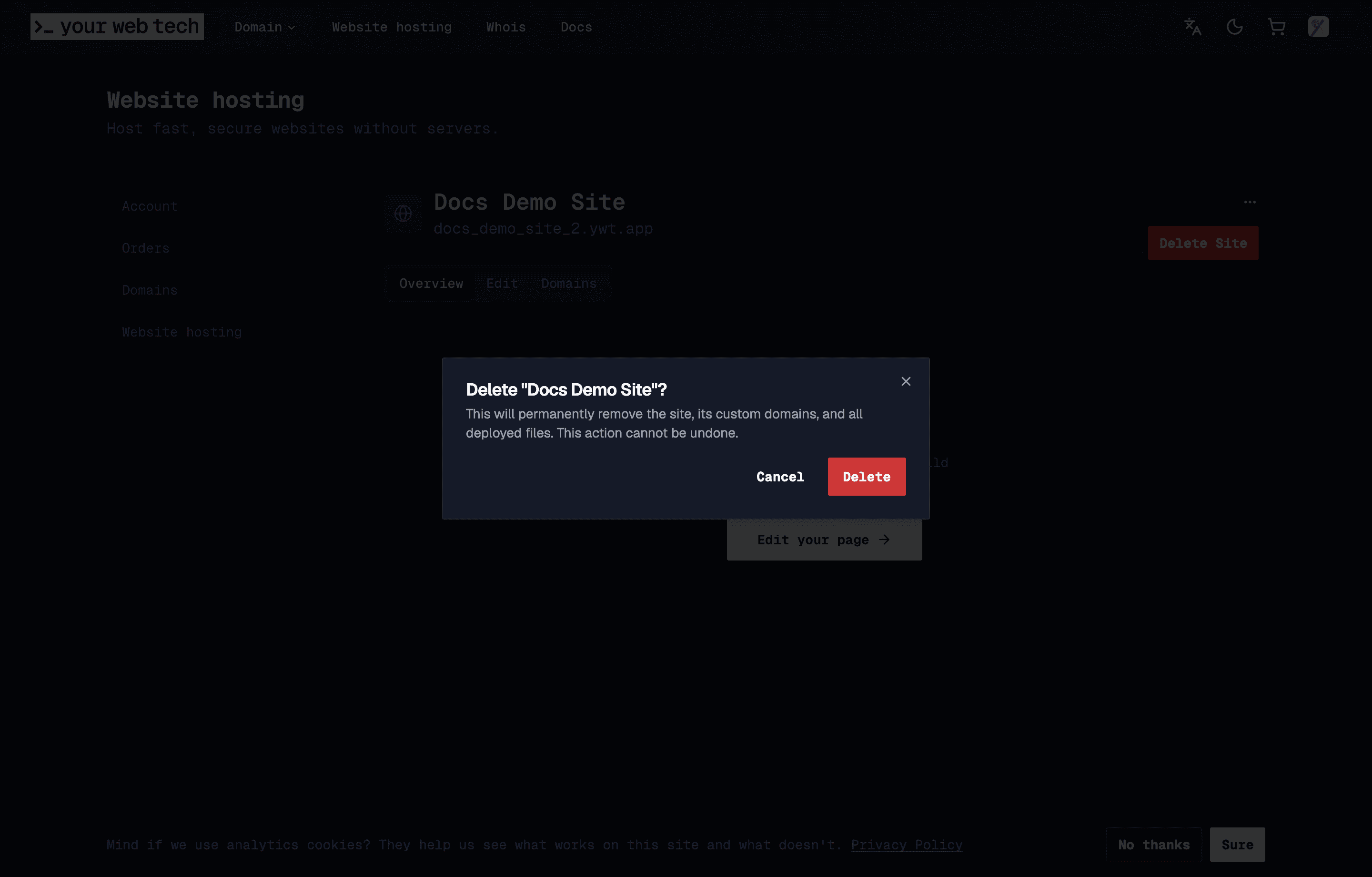
When deletion succeeds, YWT removes:
- the site record
- connected static-hosting domain mappings and host configs
- draft and deployment files
- deployment history
- upload sessions, usage snapshots, and VCS connection records associated with the site
What happens to URLs after deletion
After deletion:
- the default
*.ywt.apphostname stops serving the site - connected custom domains stop serving the site through YWT
- deployment preview URLs stop working
- shared draft links and other workspace preview URLs stop working
If a custom domain still points to YWT after the site is deleted, visitors will not reach your old content. Update DNS at the current DNS provider if you want the domain to point somewhere else.
Custom 404 pages
If your site includes a file named 404.html, YWT serves it when a requested path cannot be resolved.
For a published deployment, the router checks for:
- the exact requested file
- a clean URL match such as
/about.htmlfor/about index.htmlfor single-page-app fallback when appropriate404.htmlas the custom not-found page- the generic YWT not-found page
The same idea applies to workspace previews, using your draft files instead of the published deployment files.
Before deleting
Before deleting a production site, consider:
- Downloading a copy of the files: Download files on the Edit tab gives you the draft, and Download on a version page gives you that published version. See Download your files.
- Removing or changing DNS records for connected custom domains.
- Checking whether any deployment preview URLs are still shared with clients or collaborators.
- Reviewing analytics if you need final traffic numbers.
- Cancelling or changing the static hosting plan if you no longer need paid hosting.
Next steps
- Use the editor to manage your draft files on the Edit tab.
- Deploy your site when changes are ready to publish.
- Manage hosting plans if you need to upgrade, downgrade, or cancel paid hosting.