

Orders
View your order history, check order statuses, inspect order details, and download invoices from your YWT account.
Orders
Every time you register, renew, or transfer a domain, or change a paid static hosting plan at YWT, an order is created. The Orders page gives you a complete history of account transactions, along with the tools to inspect details and download invoices when available.
Viewing your order history
To see all orders, navigate to Account > Orders in your YWT account. The orders list shows every transaction sorted by date, with the most recent orders at the top.
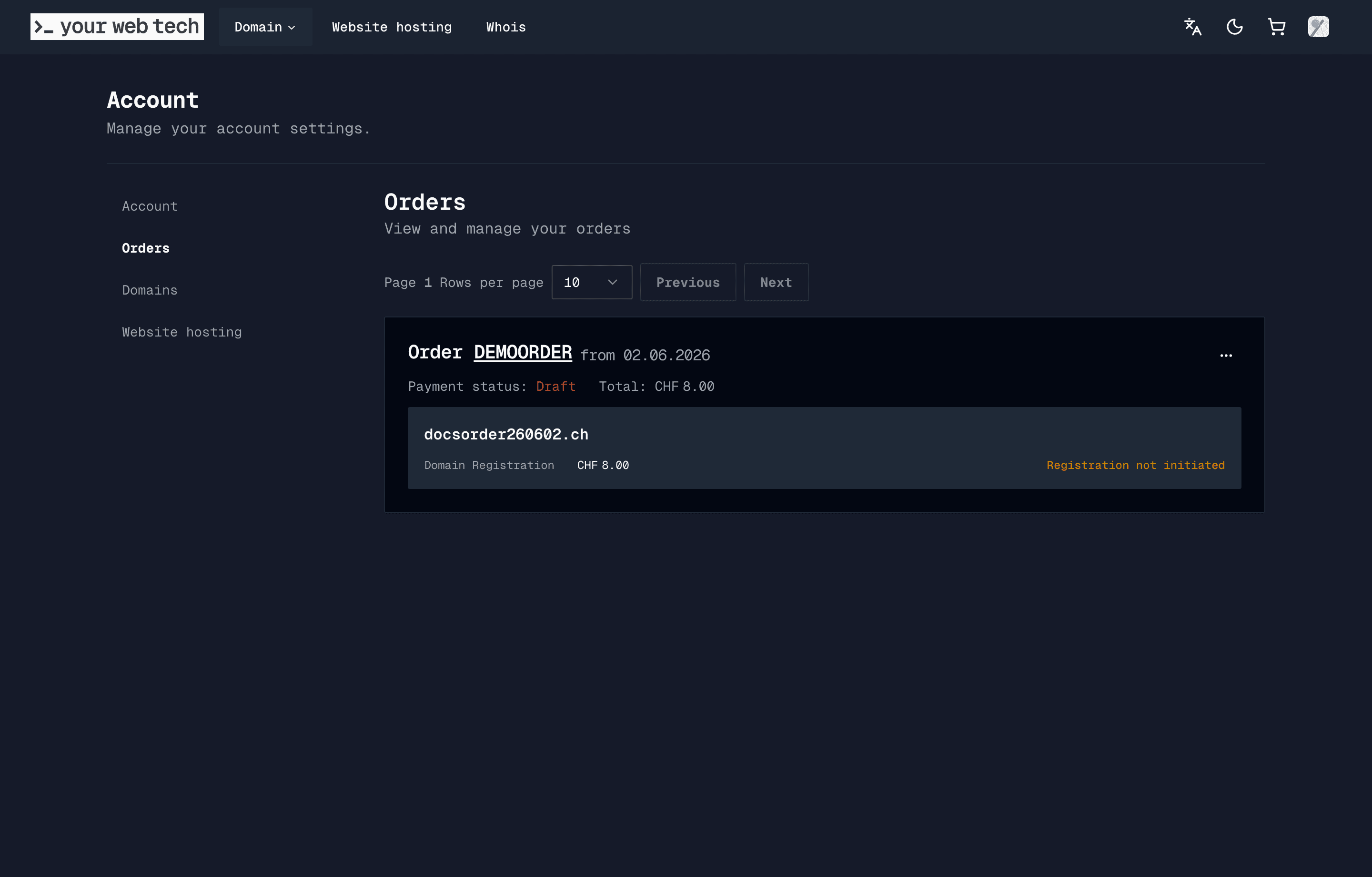
Each order card shows the information available for that order:
- Order ID and date — The internal order identifier and when the order was created.
- Items — The domains or static hosting plan changes included in the order.
- Total due — The invoice total and currency.
- Invoice status — The Stripe invoice state, such as paid, draft, open, void, or uncollectible.
Order statuses
The order list is based on the attached Stripe invoice status:
| Status | Meaning |
|---|---|
| Draft or Open | The order exists but still needs payment or invoice processing. |
| Paid | Payment succeeded. Domain and hosting processing continues from the paid invoice webhook and order processor. |
| Void or Uncollectible | The invoice can no longer be collected in its original state. Contact support if you still need the order. |
Most paid orders process automatically after payment confirmation. If a paid order does not result in the expected domain or hosting change, contact support with the order ID.
Viewing order details
Click any order in the list to open its detail page. Here you will find the full breakdown of the transaction.
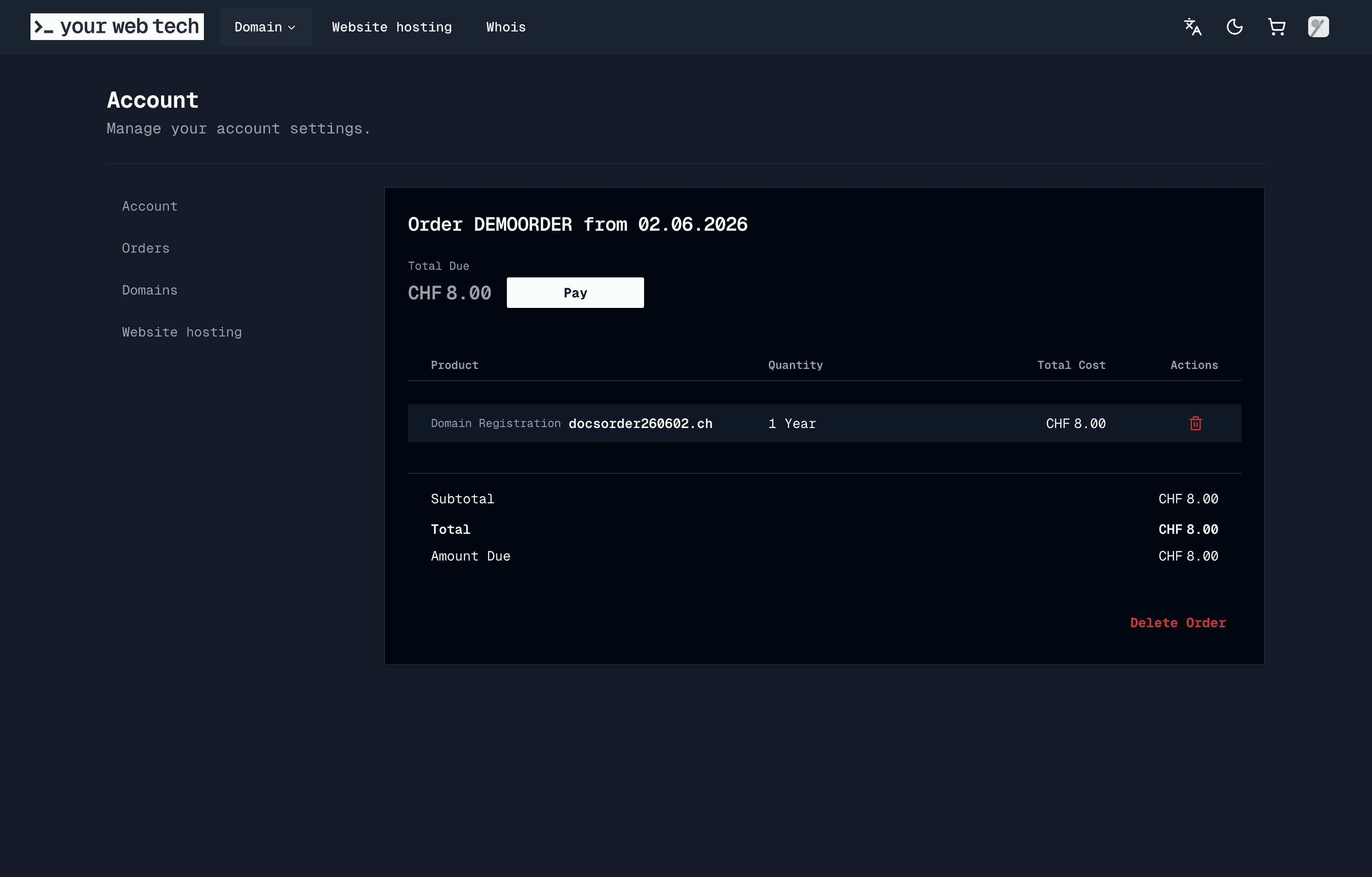
The order detail page includes:
- Line items — Each domain action or static hosting item in the order, with its quantity/term and price.
- Subtotal, discounts, total, and amount due — The invoice amounts returned by Stripe.
- Payment action — If the invoice is not paid, the detail page shows a Pay button that sends you back to checkout.
- Invoice number and PDF — Paid invoices with a Stripe invoice number can be downloaded as a PDF.
Downloading invoices
If an invoice number is available, you can download a PDF invoice directly from the order detail page.
Open the order
Go to Account > Orders and click the order you need an invoice for.
Download the invoice
On the order detail page, use the invoice download control beside the invoice number. The PDF is generated from the stored order and invoice data.
Invoices are shown for paid orders when Stripe has assigned an invoice number. If you do not see a download control, the order may still be unpaid or may not have an invoice number yet.
Business receipt details
Invoices are generated from the stored order, payment, and billing contact data. If your billing contact includes a VAT ID, YWT includes it in the generated invoice PDF.
Review your billing contact before checkout if you need business receipt details on the invoice. Changing contact details later may not rewrite already issued accounting records.
Next steps
- Set up auto-renew — Avoid missed renewals by enabling automatic renewal on your domains. See Auto-renew.
- Manage hosting billing — Understand hosting subscriptions, plan changes, and cancellation in Static hosting plans and billing.
- Handle failed payments — If an order remains unpaid, follow the steps in Failed payments to update your payment method and continue checkout.
- Manage your domains — View and configure all your domains from your domains list.