

Security
Manage your YWT account security and enable two-factor authentication.
Security
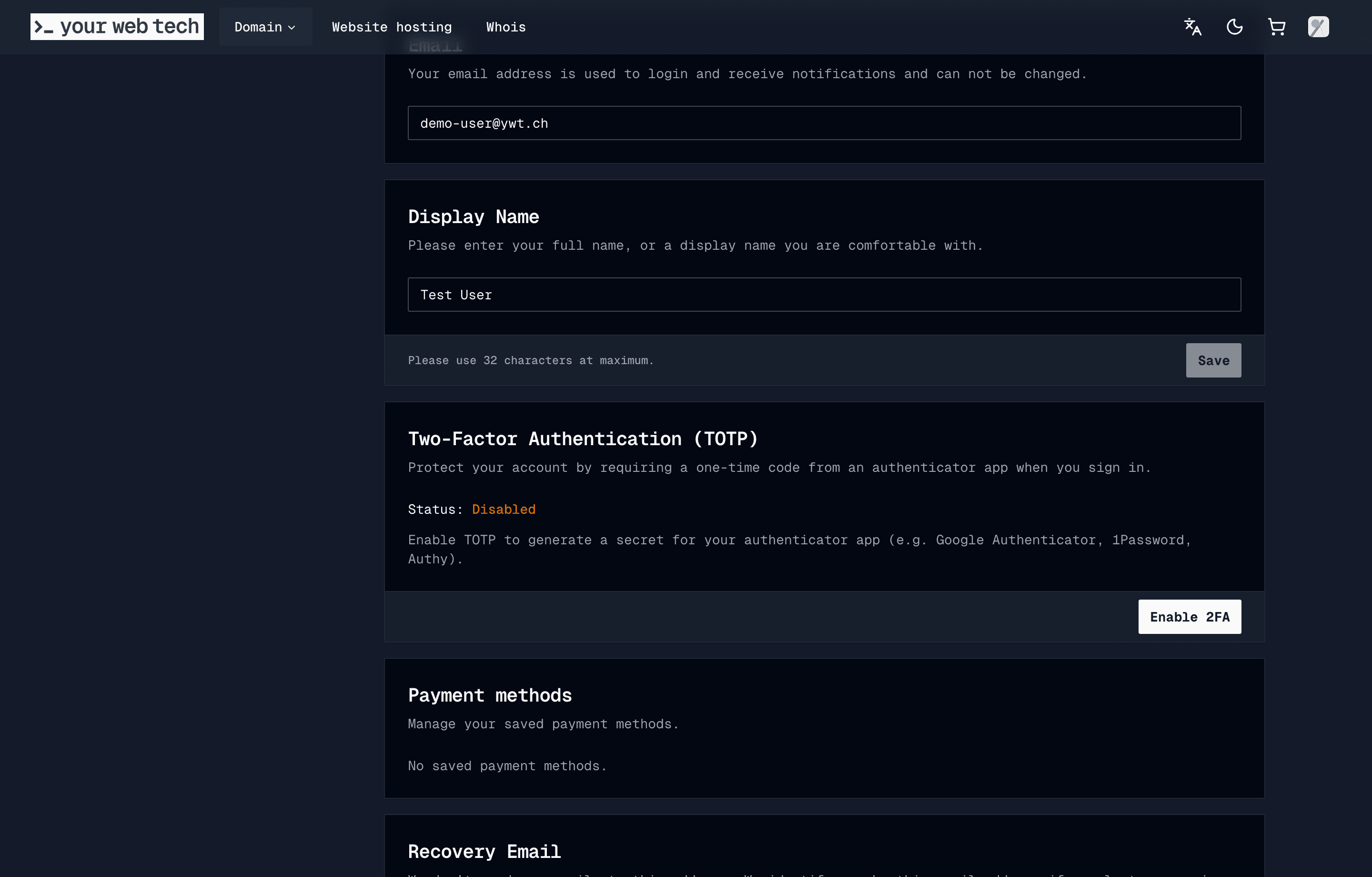
Your YWT account controls your domains, DNS settings, and billing. Keeping it secure is essential. The Account page lets you add TOTP-based two-factor authentication, and the sign-in flow provides password reset if you lose access.
Password management
Your password is the first line of defence for your account. YWT recommends using a unique, strong password that you do not reuse on other websites.
Use a password that is at least 12 characters long and includes a mix of uppercase letters, lowercase letters, numbers, and symbols. Consider using a password manager to generate and store it securely.
If you need to set a new password, use the password reset flow on the sign-in page. Make sure you can access the email address on your account so you can receive reset and security messages.
Two-factor authentication (2FA)
Two-factor authentication adds an extra layer of protection to your account. When enabled, you need both your password and a one-time code from an authenticator app to log in.
Enabling 2FA
Open security settings
Go to Account and find the Two-Factor Authentication (TOTP) section.
Click "Enable 2FA"
Click the Enable 2FA button to begin the setup process.
Scan the QR code
YWT displays a QR code. Open your authenticator app (such as Google Authenticator, Authy, or 1Password) and scan the code. The app will start generating six-digit codes for your YWT account.
Enter a verification code
Type the current six-digit code from your authenticator app into the confirmation field and click Verify. This confirms that 2FA is set up correctly.
Store your authenticator app setup safely. If you lose access to your authenticator device, contact YWT support for account recovery.
Disabling 2FA
If you need to disable two-factor authentication, go to Account, click Disable 2FA, and confirm the disable dialog. Keep in mind that this reduces the security of your account.
Security best practices
- Use a unique password — Do not reuse your YWT password on other services.
- Enable 2FA — Two-factor authentication significantly reduces the risk of account compromise.
- Keep your email secure — Your account email is used for password resets. Make sure the email account itself is well protected.
- Watch for phishing — YWT will never ask for your password by email. If you receive a suspicious message, do not click any links and contact support.